
Make massive layered sounds with TRANSFORM
And here’s the pitch: This video demonstrates how to use Transform to make massive layered sound effects like the ones heard in the original Transform trailer.
TRANSFORM is an extensive collection of field recordings, sound effects and designed sounds developed by sound designer Jean-Edouard Miclot (a.k.a. JEDSOUND). Bundled with sample mappings for many popular formats, TRANSFORM’s painstakingly recorded and processed sounds will find their home in the arsenals of sound designers, editors and music producers alike.
AVAILABLE NOW @ http://twistedtools.com/
Audio Demo made by Richard Devine using sounds from the sample pack.
Motiongraphics and Editing by axiom-crux.net
FEATURES:
Over 1.64 gigabytes of field recordings, sound effects and designed sounds
24bit/96khz WAV audio embedded with Soundminer enriched metadata
46 sampler instruments for a variety of popular *formats
*Ableton Simpler/Sampler, Battery 3, EXS24 MKII, Kontakt 3, Maschine and Reaktor 5
A brand new version of Twisted Tools’ MP16, called MP16c
Kore and Maschine templates for MP16c
TouchOSC MIDI and OSC template for MP16c
Kyma Instrument
Bonus kit by Richard Devine
Additional content by Twisted Tools and Jedsound
PixiTracker – new music scetcher and chip tune app
PixiTracker is what you need! It is a simple and fun tool to quickly create musical sketches or chip tunes. Without requiring a lot of musical knowledge!
PixiTracker is a simple and fun sample based tracker with minimalistic pixel interface.
It is portable application, available for iOS (iPhone, iPad), OSX, Windows, Linux, Windows Mobile (WinCE) and other systems.
Official page: http://www.warmplace.ru/soft/pixitracker/
Features:
* 16 sounds per song;
* unlimited number of patterns;
* five packs with unique sounds;
* MIDI keyboard support;
* export to WAV;
* audio copy/paste;
* iTunes File Sharing;
* true warm pixel interface!
Get a lot of fun using PixiTracker together with SunVox, PixelWave or SpectrumGen iOS synths!
Animoog as a MIDI output device from a PC over WIFI using Fruity Loops
A video showing Animoog on the iPad running as a midi output device in fruity loops studio so that it can be sequenced
Just playing around with the iPad app Animoog, which I believe is still available for $0.99 at the iTunes app store. This is a huge bargain on a really really cool app. I won’t get into the specifics of the app, but if you want to know more about what Animoog is or how to use it, I recommend this YouTube video.
So, while playing around with the Animoog app, if you go into the setup menu there is a selection under ‘Refresh MIDI input(s)’ where you can select ‘Off’ or ‘Network Session 1′. This intrigued me! Apparently you can use MIDI over the ‘Network’. After some Googling I was still unclear on how to get this setup, so I thought I’d just tell everyone how I did it so you can get to making some cool tunes yourself.
How to effectively control Ableton Live 8 TouchAble
TouchAble App for iPad is available through the iTunes App Store http://www.itunes.com/app/touchable
touchAble is an unique iPad app is the first application to give Ableton Live users full control over their digital audio workstation, without the tiresome process of manual midi-mapping. touchAble allows live users to walk away from their computer and perform live from anywhere within Wi-Fi range (using ad-hoc connection or router) while keeping latency at a minimum.
TouchAble App includes 6 advanced modules, Clip grid, Mixer, Devices, Pads, Keys, XY Pad, and 2 commands menu : clips and transport.
TouchAble provides a powerful, intuitive and reliable multitouch control solution for professional use.
TouchAble includes templates for lives plugins and is fully compatible with vsts, audiounits and instruments.
The new update, touchAble 1.3 contains over 30 new features and changes, such as a loop and beatjump section, enabling anything from CDJ style mixes to creative loop manipulation, a completely rebuilt mixer that allows users to modularly choose the controls they need – complemented by the long awaited crossfader. 3 new native templates have been added: Auto Filter, Ping Pong Delay & the very first Instrument – Impulse – and are waiting to be tweaked. The new Settings Menu not only offers a cascade of new control-options – but also simplifies the connection process by adding Bonjour support.
changes / new features:
Clips:
– added Loop menu to clip module. Do loops on the fly – on whole tracks or on already prepared loops. think Traktor looping – Keep loops that you like.
– added keep loop feature which allow you to save the new loop made as new clip.
– Added beatjump / loopjump menu to clip module. Do beatjump / loopjump of a set size in the currently playing clip of a track.
– track header buttons in the clip module now function as ‘jump to active clip’ buttons. For group-tracks they allow to fold and unfold the tracks.
Mixer:
Completely rebuilt mixer:
– added crossfader to mixer
– added A/B control to mixer
– added support for as many sends as you like + name of the send tracks are now displayed.
– added possibility to show as many faders at once as you like – and you can decide which!.
– added the possibility to control return tracks the same way you can control normal tracks
– added “+” mode to fullscreen for double length faders for precision tasks
– added snap mode to mixer
Drums:
– added velocity sensitivity mode to drum pads
Devices:
– Added Impulse native template
– Added Auto Filter native template
– Added Pingpong Delay native template
– Track Header buttons in the Device Selection View will switch Lives view to the device chain of the respective track.
XYPad:
– snapshots will be saved with saved templates of XY pad now
– after morphing / playing / stopping snapshots the dots will not be affected by gravity till touched
General:
– Added support for 4 iPads
– Added possibility to link several ipads and setting their relative positions.
– touchable will prefer a wired connection if available (MyWi etc)
– design & layout changes throughout the app
– added 16 tracks mode
– triple quick taps on relative faders will: bring the fader to max value if it is done on top of the fader, bring the fader to the exact middle value if you tap around the middle part, and bring the fader to 0 value if you tap on the bottom part.
– Finally touchable will connect via bonjour – tests show that almost no setup is needed to connect
New Settings:
Clips:
Lock navigation in Clip grid – On / Off:
-If enabled, clips will start immediately after touching – but you won’t be able to scroll in the clip grid
Slide Clips to launch in Nav Lock Mode – On / Off:
-Makes it possible to slide e.g. a row of clips in different tracks to start them
Devices:
Always Open Device View 8 – On / Off:
-If enabled, devices will always show the FX8 view instead of switching to FX32 for devices with more parameters.
Mixer:
Relative Crossfader – On / Off:
-same as relative faders elsewhere – just for the crossfader
Hide Mutes – On/Off:
-If enabled, mutes are hidden from the view.
Max Shown Controls for 2/4/8/16 tracks mode (0-8, 0 being disabled):
-You can set the maximum amount of controls shown per channel in each of the different sizes. When changing size the mixer will automatically show/hide faders depending on your preference.
General:
Link iPads – On / Off:
–
enables or disables automatic following of secondary ipads.
bugfixes:
– arm / exclusive arm fixed
– numerous fixes for smaller issues / crashes / performance improvements
TouchAble is supported by many professional musicians, performers, djs and composers around the world, who use touchAble on stage or in studio.
Double Trouble (Rhythm Studio on iPad)
Background information:
Another little number made with Rhythm Studio. I’m still figuring out how to make a good video of the iPad (it can be hard), but I’m getting better. Enjoy!
There’s no one driving – In the studio with John Foxx
In the studio with John Foxx and Benge:
“1-practicing Interplay
2-me recording the sequenced part for A New Kind Of Man – note: most of the backing tracks for the live set are taken from the original 8 track masters that John has kept all these years, but I have to remake a few bits here and there…
3-sequencing the bass line on No One Driving
4-John, Hannah and the Digitech Vocalist II”
Sasha – Classic Dance – O-Generator Dance App
Classic Dance track made simple. Using a Sasha idea to build a dance track using O-Generator Dance App.
A Simple Interface that Generates Sophisticated Results.
Use O-Generator to compose music, sketch out music ideas and create original loops. This is NOT a preset sample loop device. You can choose from a wide range chords, select notes and build the rhythmic patterns for your music compositions.
For those new to making music each app comes with step-by-step song writing tutorials. For more experienced song-writers O-Generator is a superb tool to explore musical ideas.
AVAILABLE ON THE APP STORE
http://itunes.apple.com/gb/app/o-generator-dance-music-maker/id439280418?mt=8
Sound Design with NI’s Reaktor
More info – http://bit.ly/qyBVyR
“One of the interesting things that I find in my travels working for Native Instruments, is that there seem to be a whole lot of people out there who don’t really understand what Reaktor is. Reaktor tends to be the one instruments from NI that actually scares people because it looks so complex and sophisticated. Reaktor is a completely modular system that allows you to build virtually any digital audio device that you can imagine. At Dubspot, we teach our Sound Design & Synthesis students how to dive deep into Reaktor’s guts to create their own custom synthesizers and gain a greater appreciation for modular synthesis.”
SonoReplicator – turns standard speakers and earphones into acoustic copies
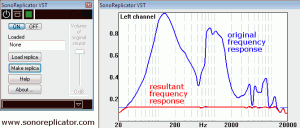
SonoReplicator has released SonoReplicator VST, a spectral processor effect plug-in which turns standard speakers and earphones into acoustic copies (replicas) of studio monitors or any other real or ideal speakers and earphones.
The replication is implemented by means of a patented method of digital audio correction. Use SonoReplicator to improve the sound of your speakers and earphones. Even very cheap loudspeakers and earphones will sound much better.
You need a microphone to work with the SonoReplicator plug-in. It can be a cheap PC microphone or a professional measurement microphone. Professional measurement microphones are more accurate, however, cheap PC microphones are quite suitable to improve the sound of conventional speakers and earphones. The microphone is necessary to measure the frequency response of your speakers or earphones. The process of the measurement is described in the program’s Help. The measured frequency response can be saved as a file and loaded when necessary.
The program displays three kinds of plots: original frequency responses, etalon frequency responses and resultant frequency responses. It is possible to use two types of the etalon frequency responses: frequency responses of ideal speakers (earphones) or frequency responses of real speakers (earphones).
SonoReplicator generates a digital signal processing algorithm which can be used to correct the frequency responses of your speakers or earphones in accordance with the chosen etalon. The algorithm can be saved as a file for the permanent use. It is possible to save a few algorithms for different speakers and earphones. Such algorithms can be loaded into the SonoReplicator plug-in to make the appropriate change in the sound of your speakers or earphones. If everything is done correctly, the corrected frequency response of your speakers or earphones will be similar to the frequency response of the chosen etalon.
SonoReplicator VST for Windows is available to purchase for $29.95 USD.
More information: SonoReplicator
5 stage resonator demonstration
“This is a 5 stage 555 based resonator, the core is based on the Electronotes circuit (3 stages). Not trying to be musical here, just a fixed tone from a VCO, a signal from an envelope generator and some knob twiddling to give some idea of what this does.”
DATAMASKIN

